Slicing
This feature is a tool for 3D Publications, and allows you to draw a 3D box on the map to isolate and visualize only the 3D data contained within that box. As such, you get a focused visualization of 3D data within that defined space while hiding everything outside of it.
How to create a Slice
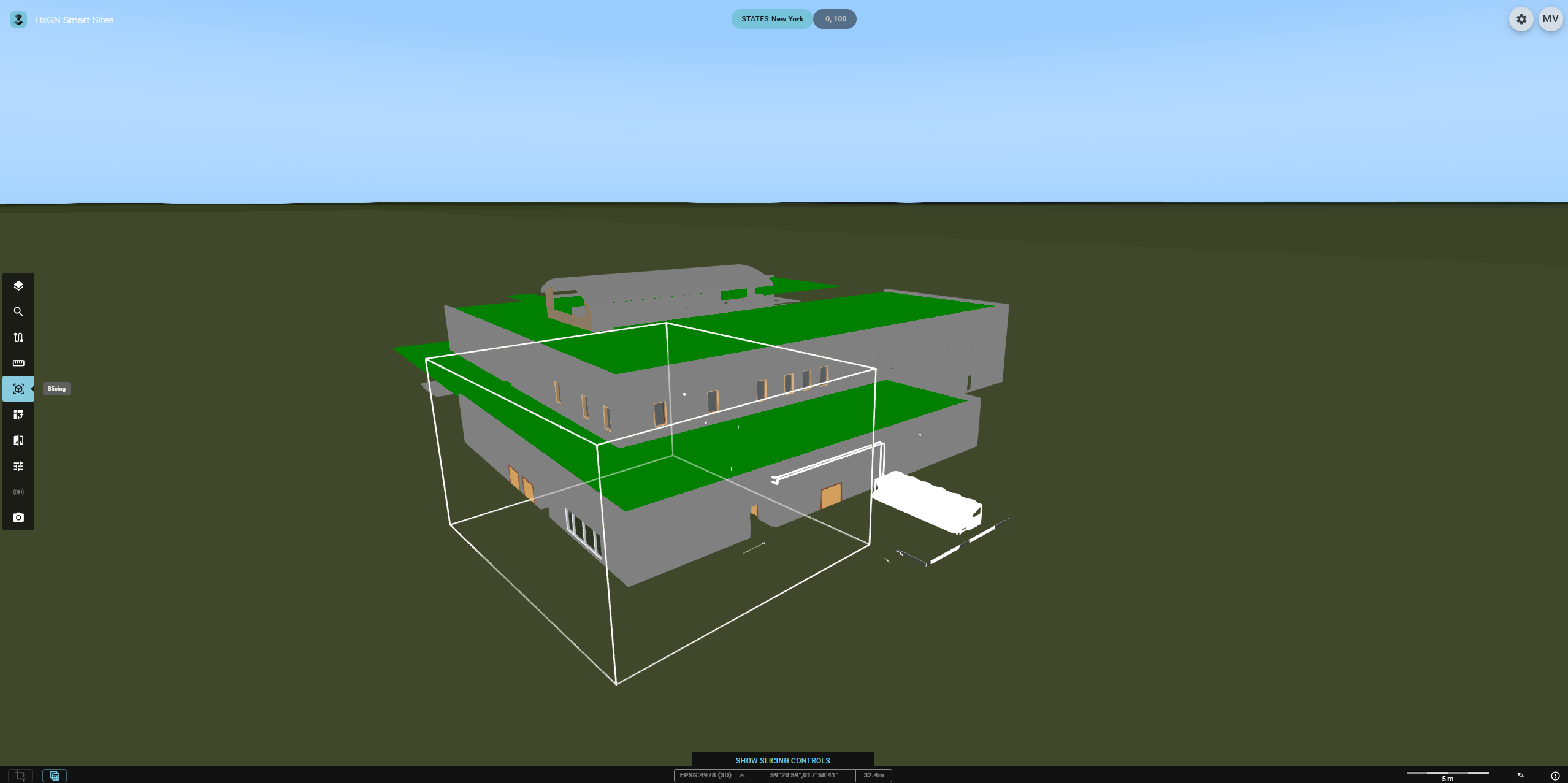
- Identify the chosen 3D data: Navigate to the data you want to slice by panning the map or fitting on the Publication. You might need to tilt the camera for a better initial visual.
- Activate the Slicing tool: Click the
Slicingicon in the Toolbar. A circle appears under your cursor, and the bottom of the screen will have a new buttonshow slicing controls. - Create a slice: Click 4 times to create the box. First, for the 2D base rectangle: a start point, first side, then rectangle; all clamped to the ground. The last click determines the height of the Slicing box.
Once the Slicing box is created, it can also be edited and moved around.
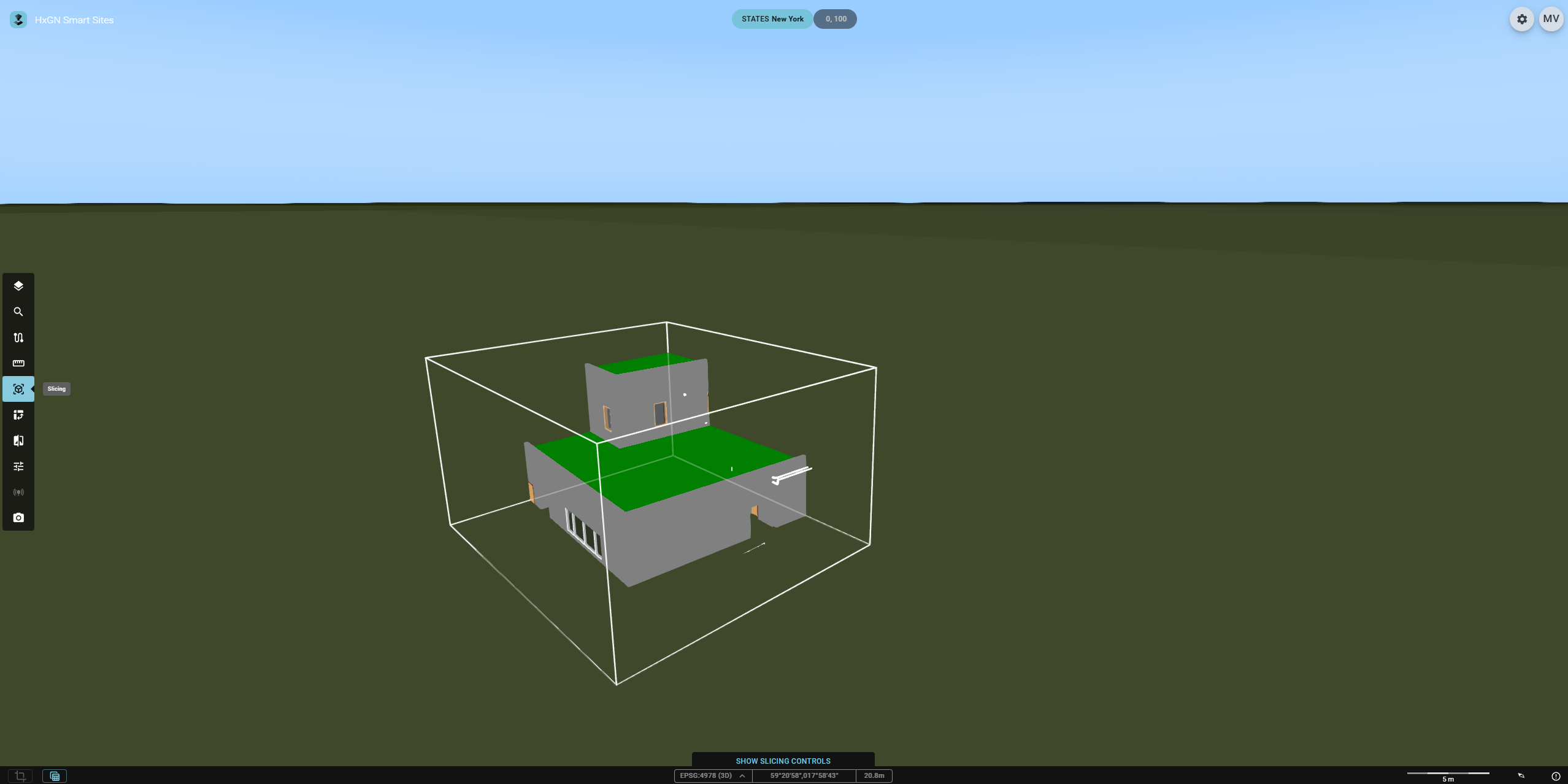
How to use the Slicing box controls
Moving and rotating a Slicing box
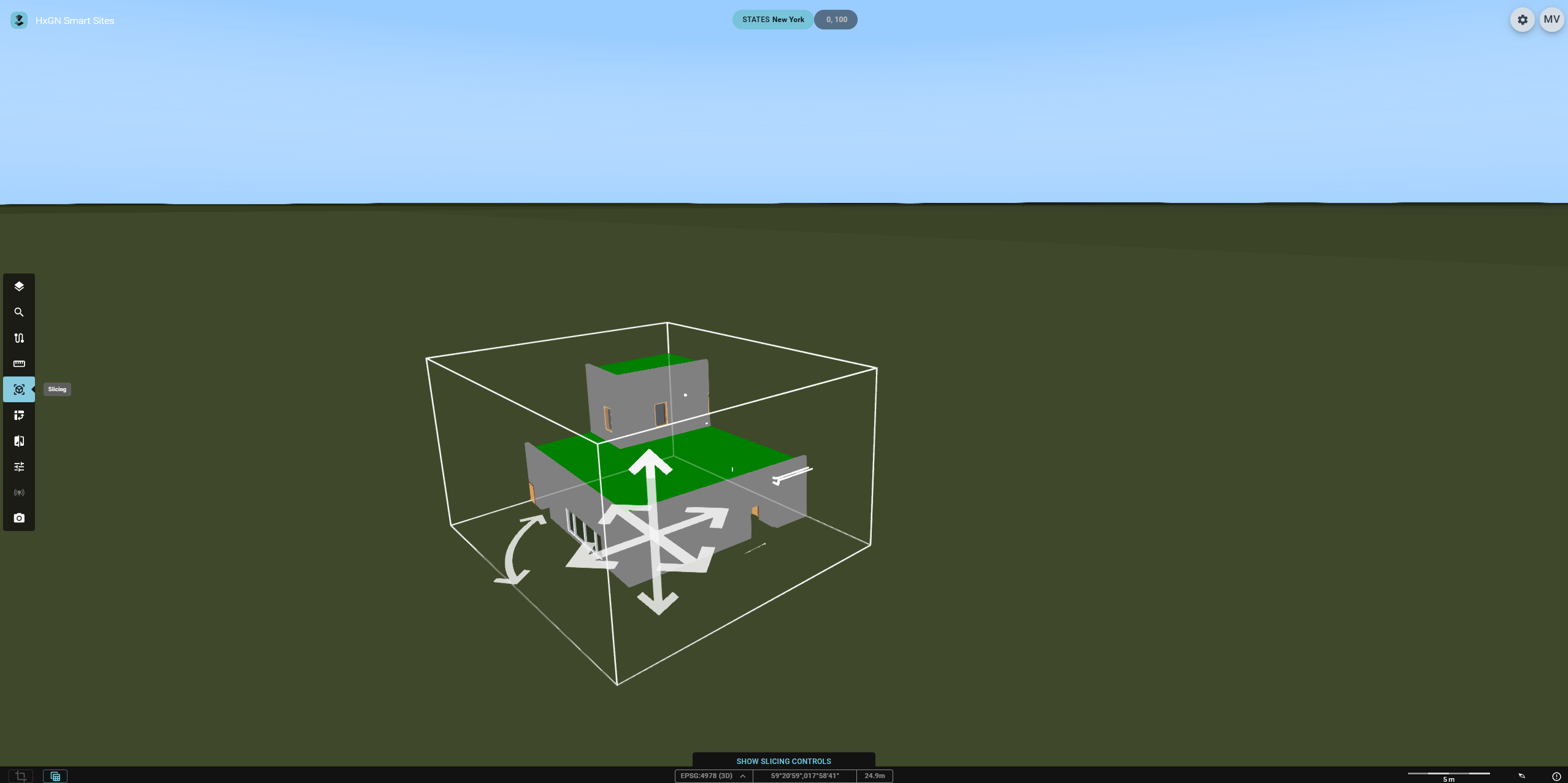
- Click the Slicing box twice to make the movement indicators visible (arrows pointing in the 3 directions of movement, and a curved arrow to rotate).
- Click an arrow and drag to the position or give the rotation you wish.
- Click any point on the map to end the process.
Editing a Slicing box
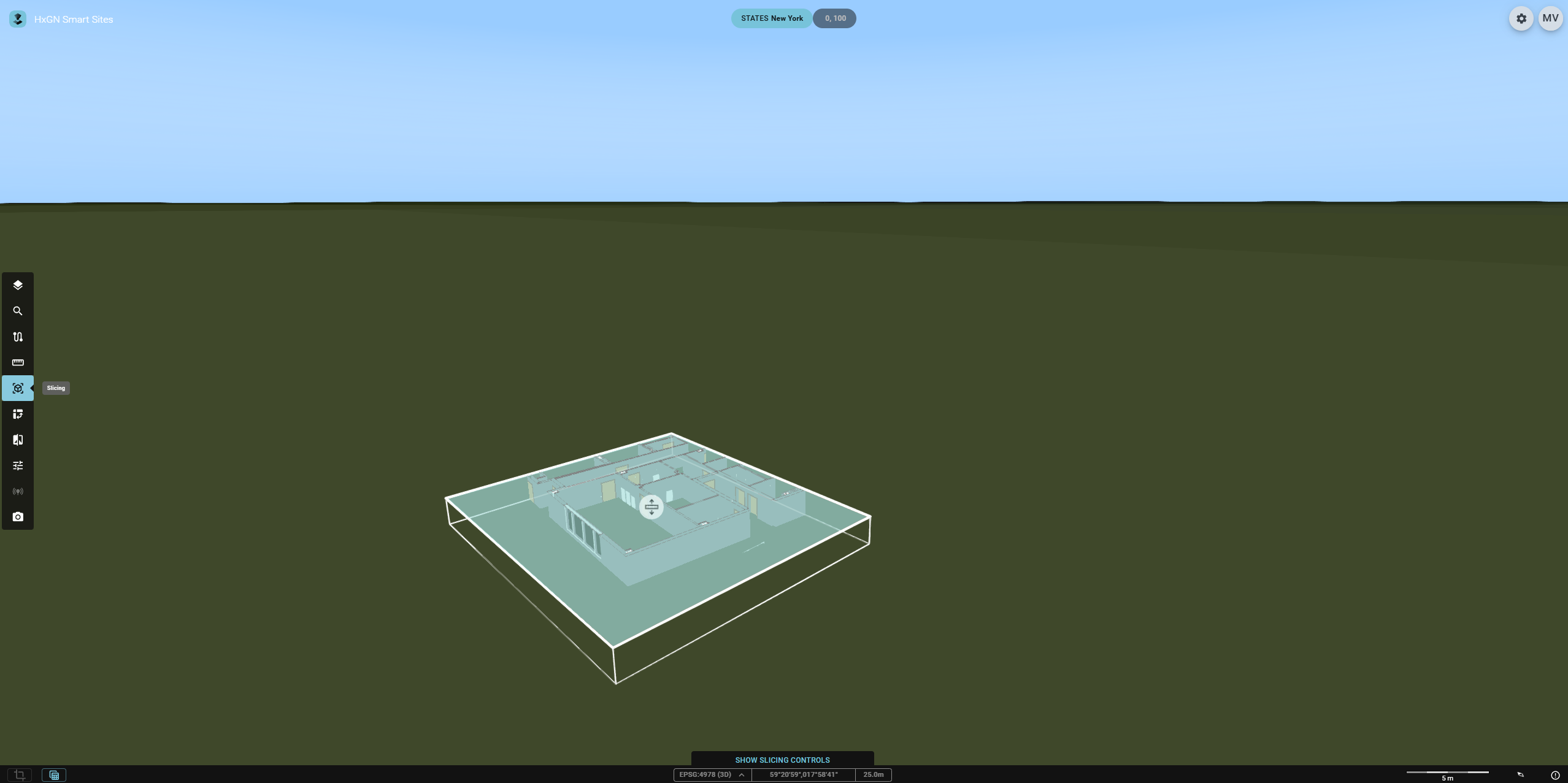
- Click the surface you wish to edit. An icon will appear indicating you can move the surface.
- Click and hold the icon while moving the mouse in the chosen direction. This adjusts the size of the box accordingly.
- Click any point on the map to end the editing process.
Exiting the Slicing Widget
Slicing boxes and the filter applied by the box are only available when the Slicing Widget is active (indicated in blue on the Toolbar).
Clicking the Slicing icon again, or any other icon on the Toolbar permanently deletes the Slicing box.