Annotations
This feature lets you create, view, and edit information tags on raster, elevation or 3D data.
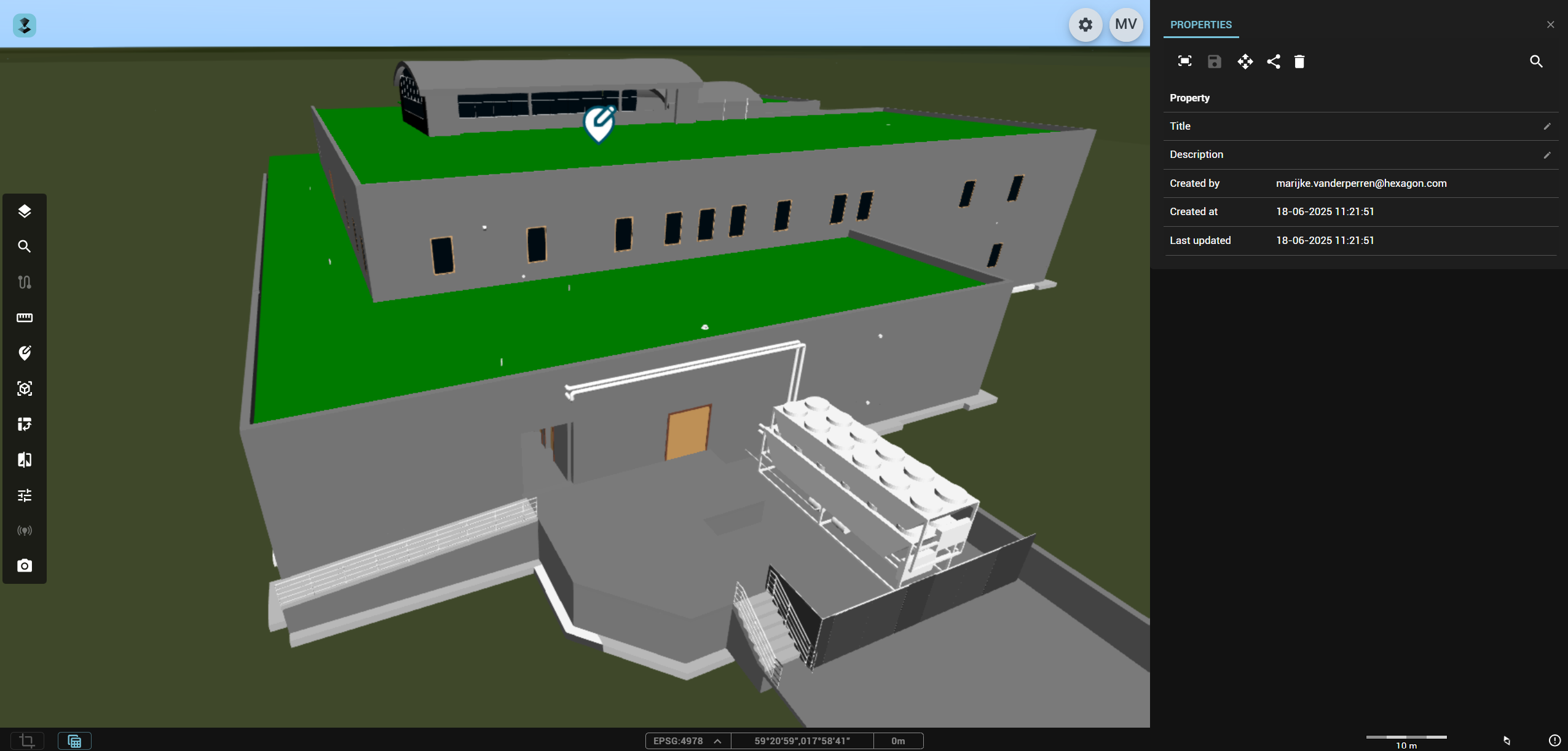
Annotation properties
The properties panel for a selected annotation shows the following options:
- Fit. Fits the map to the annotation.
- Save. This button is available when changes are made to the annotation's properties or geometry. If you leave the properties panel without saving, any unsaved changes will be discarded.
- Edit geometry. Click the icon in the panel, then use the cursor to adjust the annotation's location on the map. Remember to save your changes to avoid losing them.
- Share. You can share a link to the annotation. To access it, the recipient must have the appropriate user roles, be logged in, and have access to the corresponding Workspace and Publications.
- Delete. Remove the annotation from the map and database.
The properties include: creator, creation date and time and update date and time, title and description. The last two properties (title and description) are editable.
The camera position and map reference are stored when an annotation is created or its geometry is updated. If the current map reference matches the stored one, the view returns to the saved camera position. If the map references differ, the view adjusts to fit the annotation's bounds.
Create an annotation
- Click the
Annotationsicon in the Toolbar - Click the
Pointicon - Click a point on the map or 3D data to create a new annotation. The properties panel opens: Non-editable properties are automatically updated, you can edit the others manually.
View annotations
Select an annotation on the map or open annotations query results.
Ensure the annotations layer is visible and focused on in the layer tree.
Edit annotations
Select an annotation —on the map or in the query results— to open the properties panel.
You can then edit the geometry by clicking the corresponding icon and moving the annotation on the map.
Click the text box or pencil icon next to title or description to edit these fields.
Click the save icon to persist your changes.
To delete the annotation entirely, use that option from the icon list.