Routing
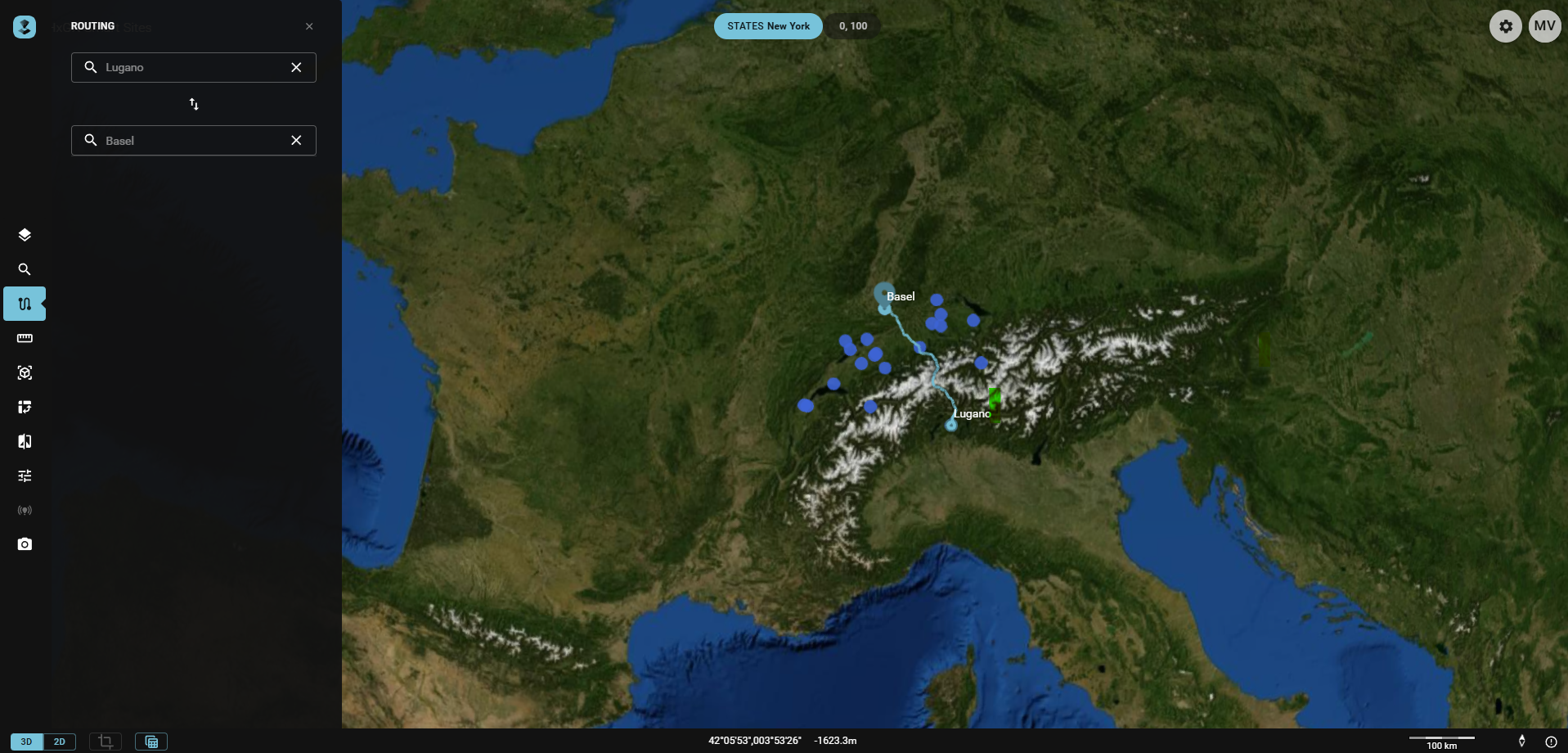
The routing feature enables users to input a starting point and a destination to calculate the optimal route between these two locations. Similar to Search, some setup needs to be done by an administrator.
How to Route
- Availability: The search widget becomes available if one or more loaded Publications support it.
- Activating the Routing Widget: Click the
Routingicon in the Toolbar. - Entering Start and Destination Points: You can type text into the
Start fromandGo toinput fields. This triggers a Search for possible features. Select your chosen feature. - Visualizing the Route: The resulting Route is displayed on the map as a line between The Start and Destination. Both locations are highlighted and labeled, with the latter also marked with a special icon.