Compare data
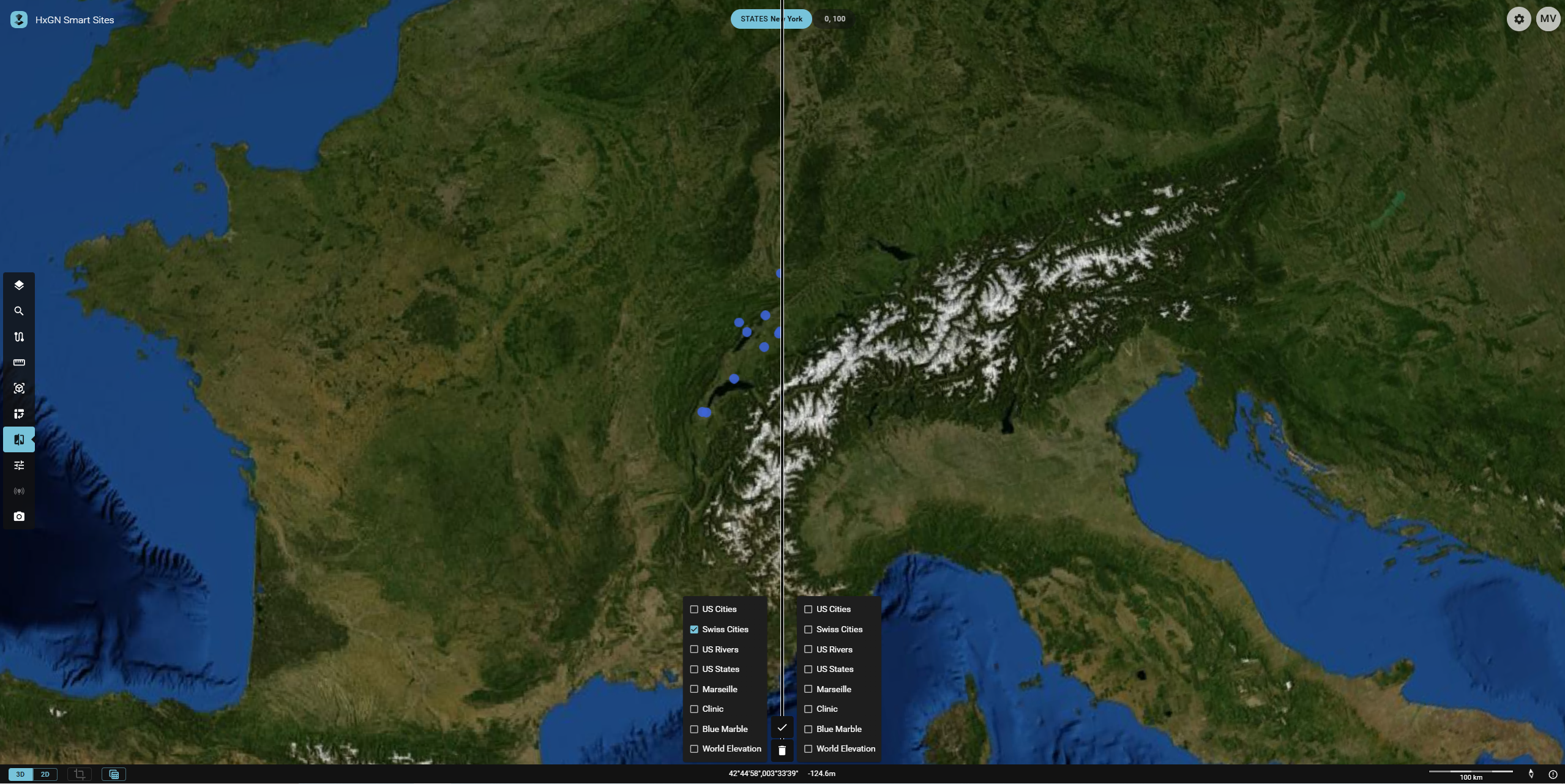
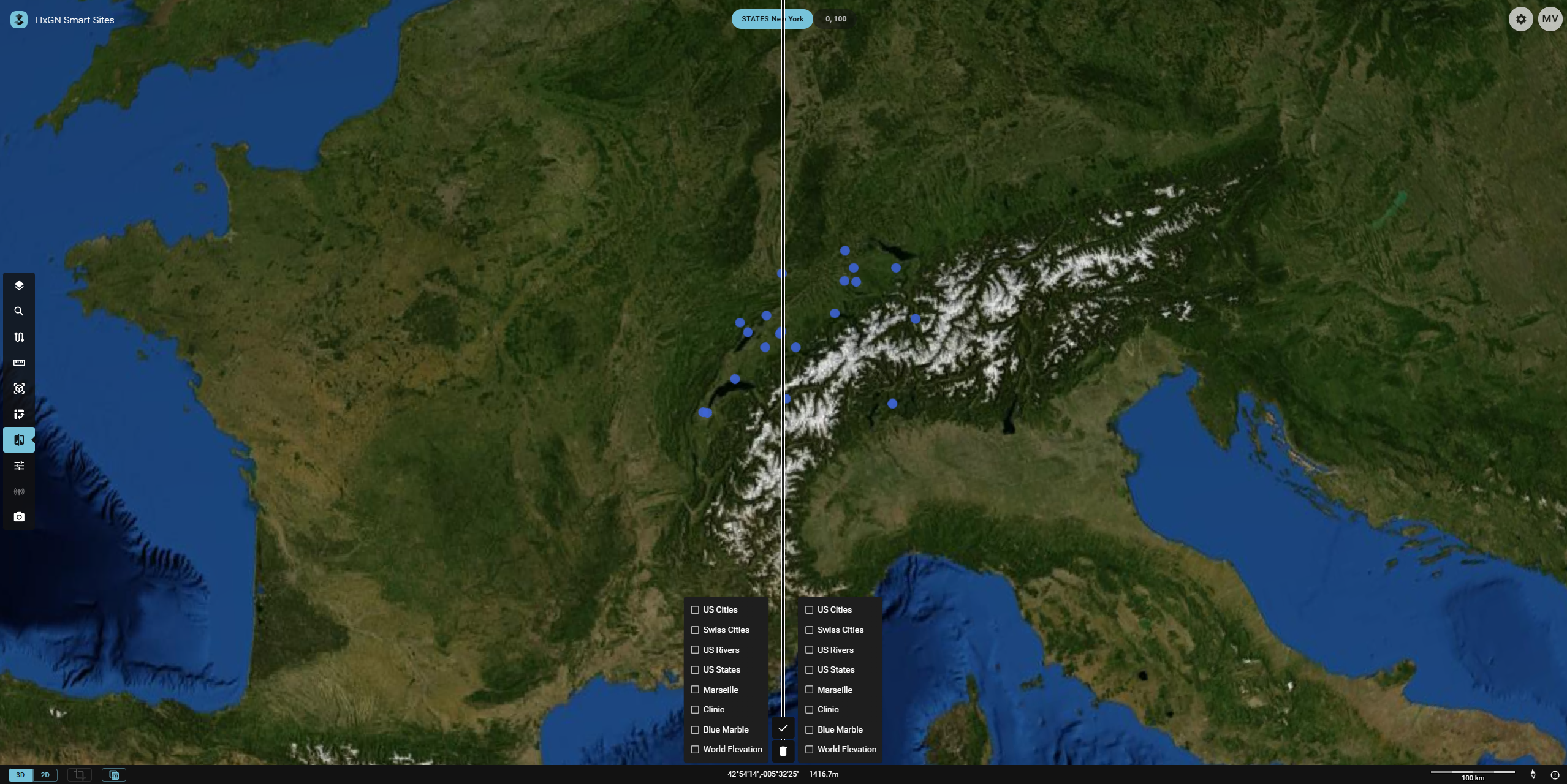
This feature lets you visually compare two sets of Publications. It splits the view with a vertical or horizontal swipe line. The first set of Publications is shown on one side of the swipe line, the second set on the other side.
When you initialize Compare data, a vertical swipe line divides the screen in two equal halves. You can change the position and orientation of the line interactively by dragging it vertically or horizontally.
You can also swipe a single Publication by leaving the second set of Publications empty.
How to Compare data
- Activating the Widget: Click the
Compare dataicon in the Toolbar - Select the Publications: Initially, no Publications are selected in the
Compare Datamenu; all Publications will be visible on the map. You can use the checkboxes on either side of the line to create your comparison states. If you select a Publication on one side, it will no longer be visible on the other side. - Compare: Click and drag the line to compare your Publications sets.