Measurements
This feature allows you to create, save and search various measurements: distance of 3D line segments, orthogonal distances, and area surface, depending on the selected measurement mode.
How to create a measurement
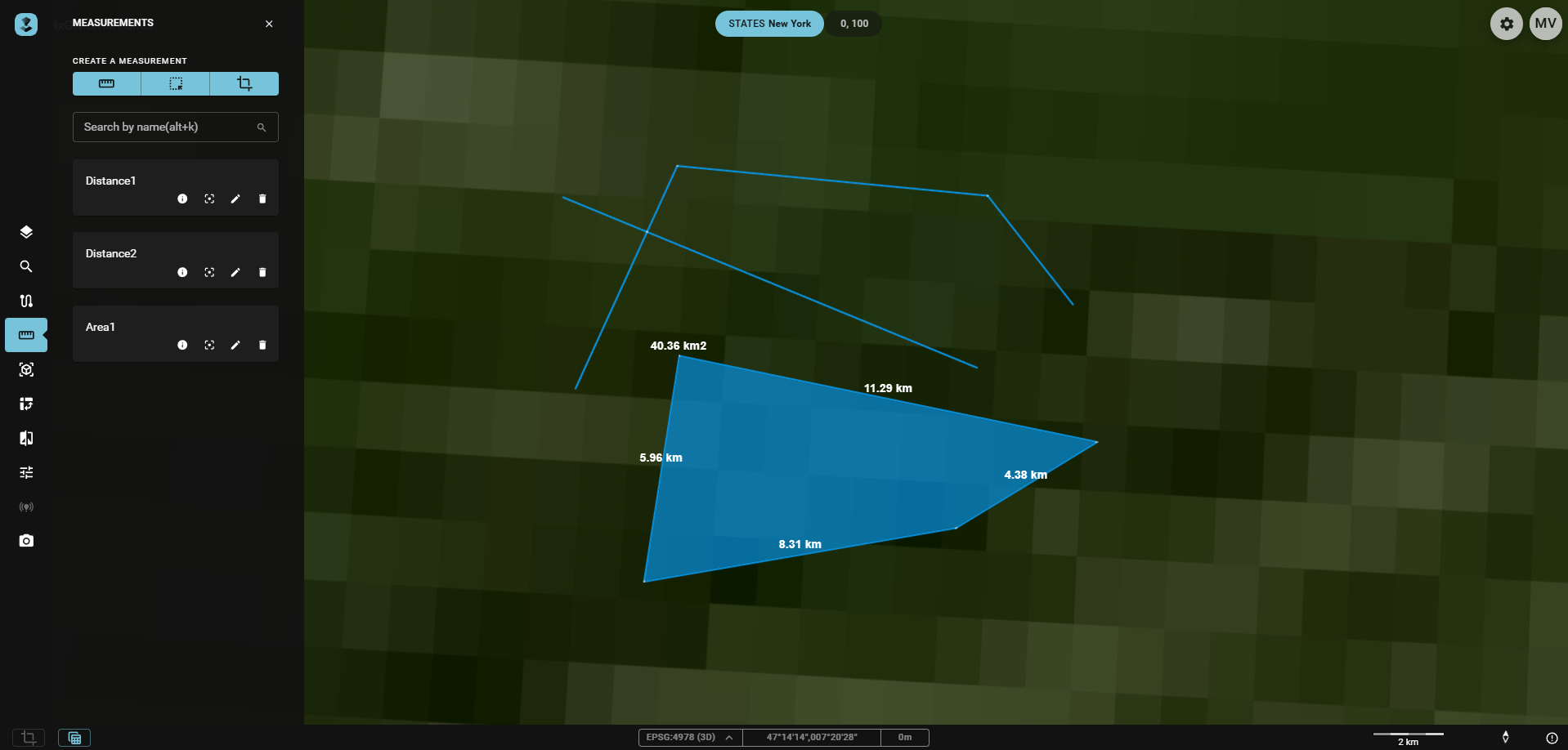
- Activate the measurement Widget: Click the
measurementicon in the Toolbar. The measurements panel opens. - Select measurement Mode:
 Click an icon
in the Menu to select the type of measurement you wish to create: distance, area or orthogonal.
Click an icon
in the Menu to select the type of measurement you wish to create: distance, area or orthogonal. - Create a measurement: Click the map in order to add new points for measurement. Each additional click adds a new segment to measure. Double-click to add a final point and finish creation.
- measurement list: New measurements are automatically added to the measurements [list](#list] on the measurements Panel.
Measurement types
Distance measurement
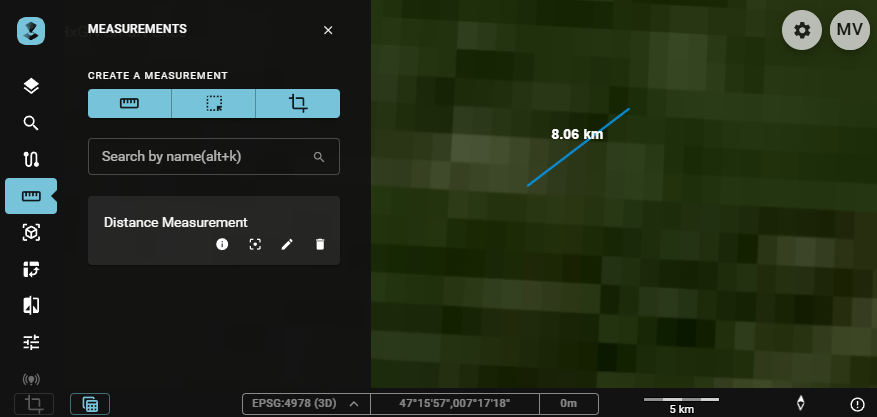
Distance measurements are used to measure the distance between multiple points on the map.
To create a distance measurement:
- Click the
New distance measurementbutton. - Click points on the map between which you would like to make measurements for.
- The minimum number of (single) clicks to make a measurements is one. The maximum number depends on your requirements.
- Double-click to create the final point and end the creation of the measurement.
The following values can be measured:
- The total distance between the start- and endpoint.
- The length of each segment of the line(upon selection of or hovering over the measurement).
Area measurement
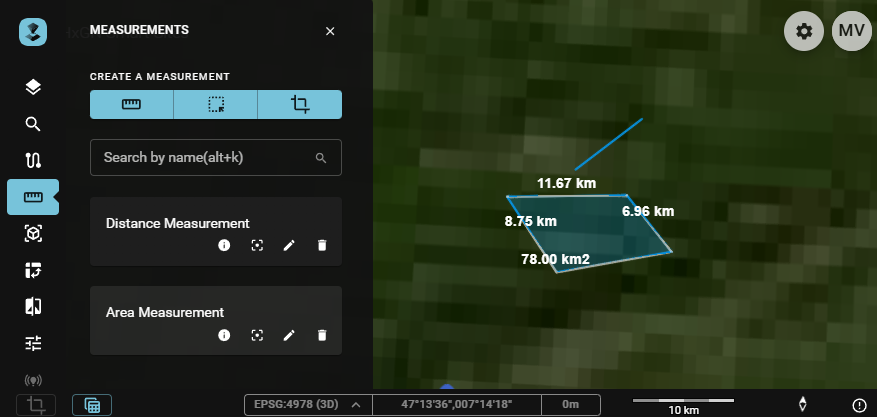
Area measurements are used to measure an area.
To create an area measurement:
- Click the
New area measurementbutton. - Click points on the map for which a measurements is to be made.
- The minimum number of (single) clicks to make a measurements is two. The maximum number depends on your measurement. Once the desired polygon is created, double-click to create the last point and end the creation of the measurement.
The following values can be measured:
- The surface area of the polygon.
- The perimeter of the polygon.
- The distance/length of all sides of the polygon that defines the area (upon selection of or hovering over the measurement).
Orthogonal measurement
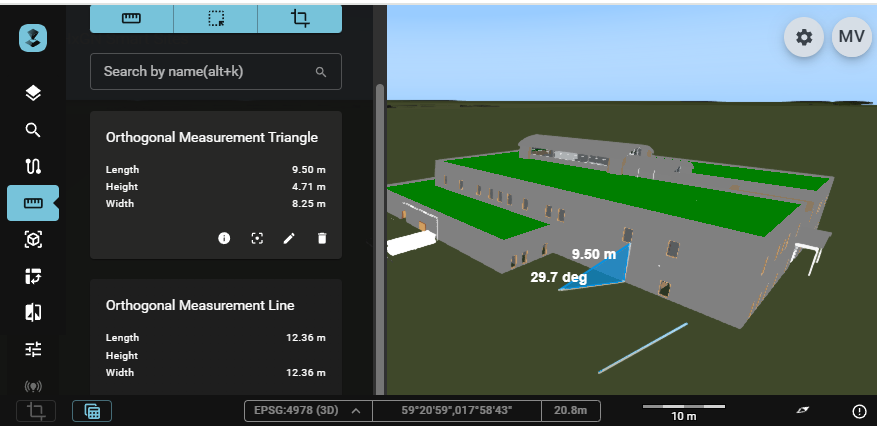
An orthogonal measurement tool is used to measure distances and height differences between two points on a map or in a 3D space.
To create an orthogonal measurement:
- Click the
New orthogonal measurementbutton. - Click the map at an initial point (at altitude zero).
- Click to create a second (end)point for the orthogonal measurement, either at the same or a different altitude. This will result in either a linear or triangular, right angle measurement.
The following values can be measured:
- The length of the line.
or
- The width (right angle, horizontal) of the triangle.
- The height (right angle, vertical) of the triangle.
- The length (hypotenuse) of the triangle.
- The angle opposite the height (upon selection of or hovering over the measurement).
Measurements panel
Creation
At the top, buttons for the creation of each type of measurement are available.
Search
Using the Search by name field, you can filter measurements by name.
List
The panel also contains a measurement list that displays all the measurements made by the user. Measurements are not specific to Publications or Workspaces. They are stored in browser cache and are not persisted to a database. Therefore using a different browser or cleaning browser caches will remove all previously made measurements.
In the list, there are tools available for you to interact with your created measurements:

- Show Details: Shows the total distance, surface and perimeter or length(, height and width) information.
- Show on map: Fits the map on the measurement
- Edit name: Allows you to edit the name of the measurement, including a revert and save button.
- Delete measurement: Deletes the measurement.
Additionally, you can hover over or click on the measurements to see additional measurement values.