Search
This feature allows you to easily search and locate data within the application, streamlining access to important information. Here’s everything you need to know about how it works and how to make the most of it.
Search can find features from Web Feature Service (WFS) and OGC 3D Tiles data when Administrators have configured it properly.
How to Search
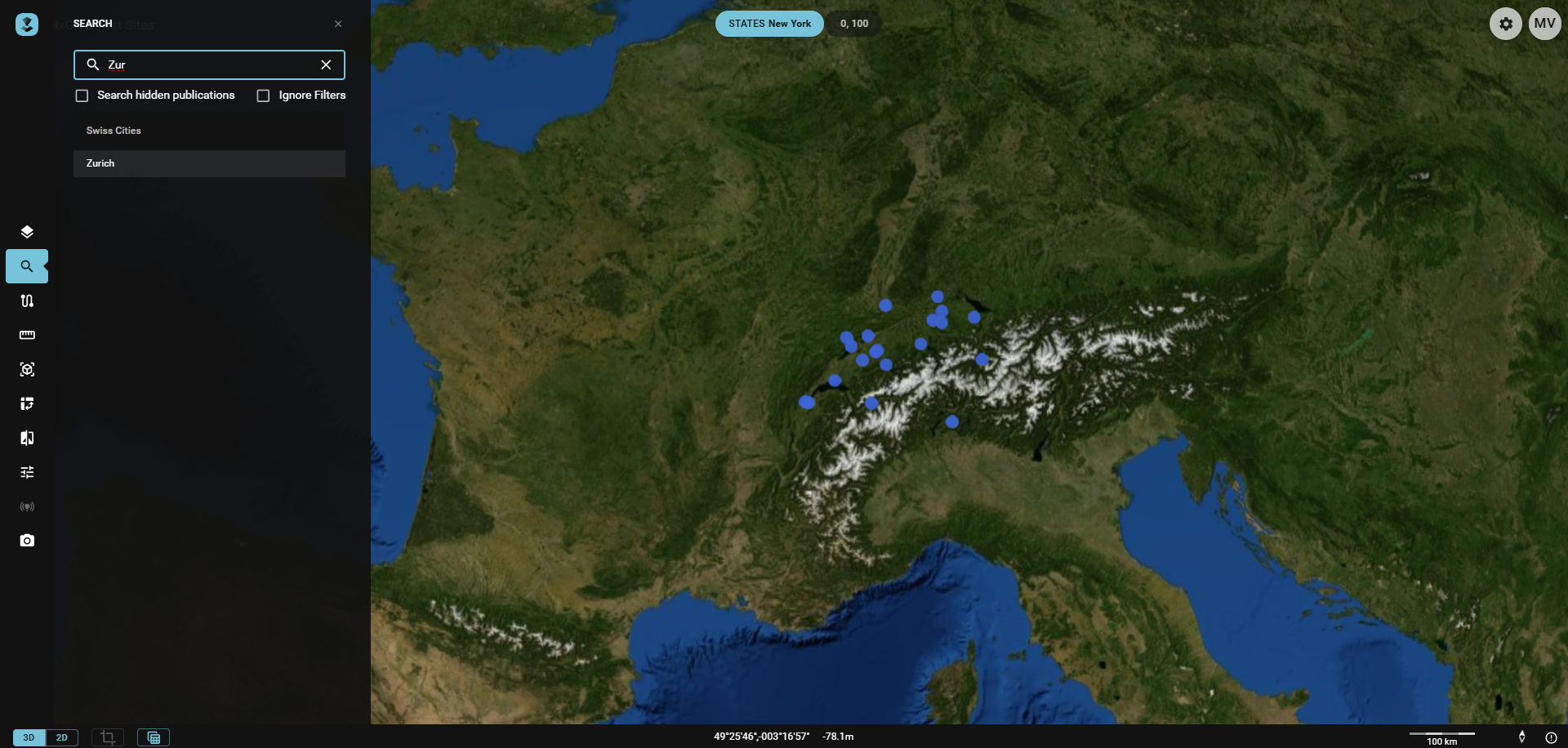
- Availability: The search widget becomes available if one or more Publications support it.
- Activating the Search Widget: Click the
Searchicon in the Toolbar. - Providing Input: You can type text into the search input field to begin your search. Note that this is a "StartsWith" search, not "Contains".
- Results: The results are displayed in a list, and ordered under the Publication they're a part of. A maximum of 50 results are displayed per Publication.
- Selecting: You can select a feature from the list of search results. Once a feature is selected in the list, the map automatically fits on it.
Additional Options
There are additional Search options available in the form of checkboxes. These are unchecked by default. If you check (or uncheck) these boxes, the Search runs again and the results are updated accordingly.
- Search hidden Publications: The Search includes results from hidden Publications.
- Ignore Filters: The Search does not take into account any active Dimensional Filters.