Dimensional Filters
When visualizing a lot of data, you might want to narrow it down to the most relevant data using specific conditions or criteria.
It makes the analysis more focused and efficient, and allows you to analyze data quickly and make informed decisions based on the insights.
For this purpose, HxGN Smart Sites offers Dimensional Filters.
Types of Filters
Your Administrators manage which Dimensional Filters are available, and for which publications. Some Dimensions are global, like time and height, others are specific to the data.
How to use global Filters
- Activate the Dimensional Filters Widgets: Click on the
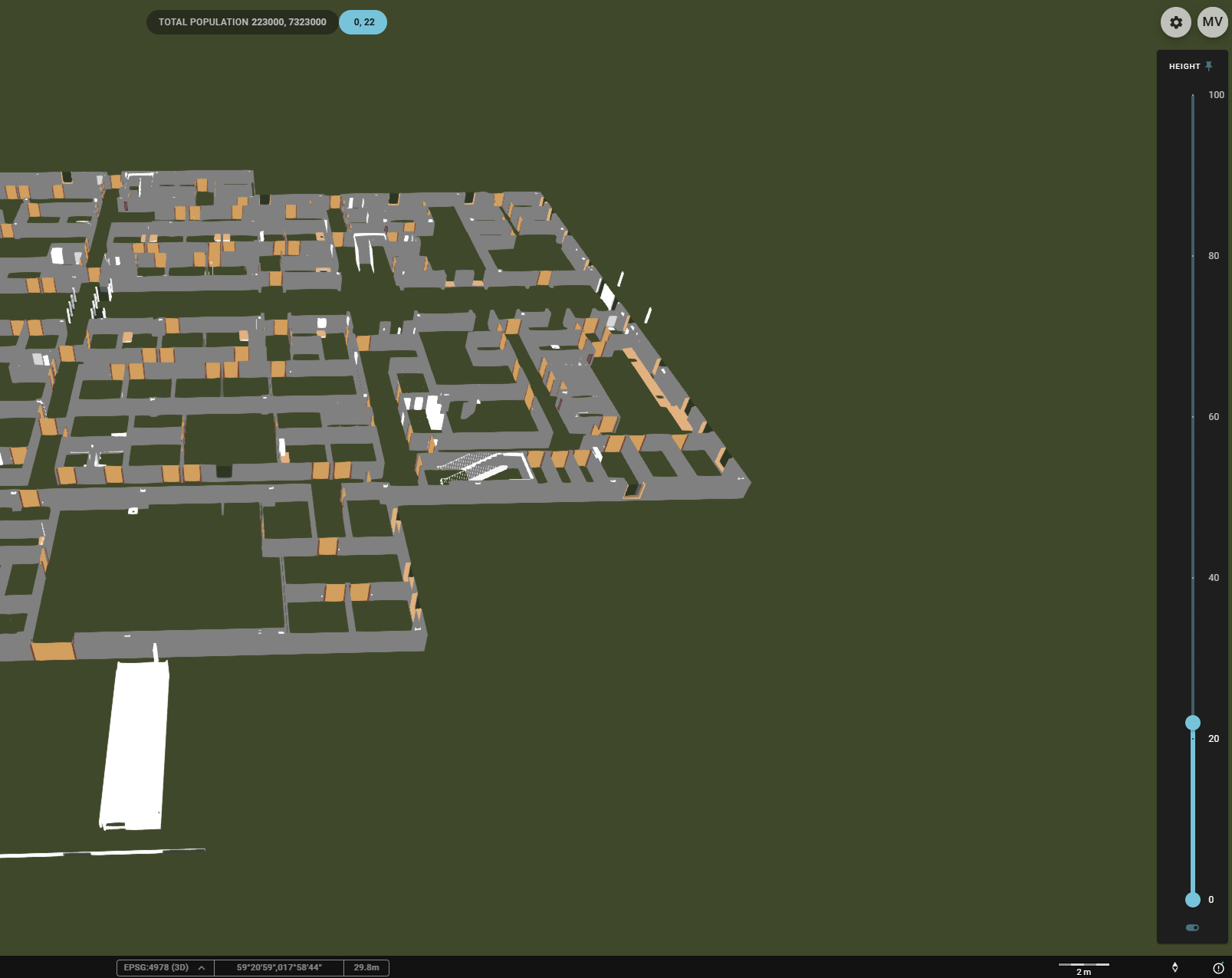
Dimensional Filtersicon in the Toolbar. - Toggle the Slider button 1: It needs to be on to interact with the Widget, and for filtering to be applied. Likewise, if the button is off data will not be filtered on this Dimension.
- Move the endpoints of the Slider 2: This filters out any data that falls outside your newly selected range.
- Pin the filter 3: Use the thumbtack icon on the Widget to pin it to the view. The filter will remain available, even when you disable the Widget from the Toolbar.
How to use specific Filters
- Set Focus on the Publication: In the Workspace panel on the Toolbar, click on
Set Focusnext to the required Publication. - Activate the Dimensional Filters Widgets: Click on the
Dimensional Filtersicon in the Toolbar. - Fit on the data: In the Workspace panel on the Toolbar, click on
Fitnext to the required Publication. - Toggle the Slider button 1: It needs to be on to interact with the Widget, and for filtering to be applied.
- Switch Focus 2: Use the drop-down menu to change the focus to another Publication. This will impact the Dimensional Filters available in the widget.
- Select Filter values 3: Use the drop-down menu or the slider.
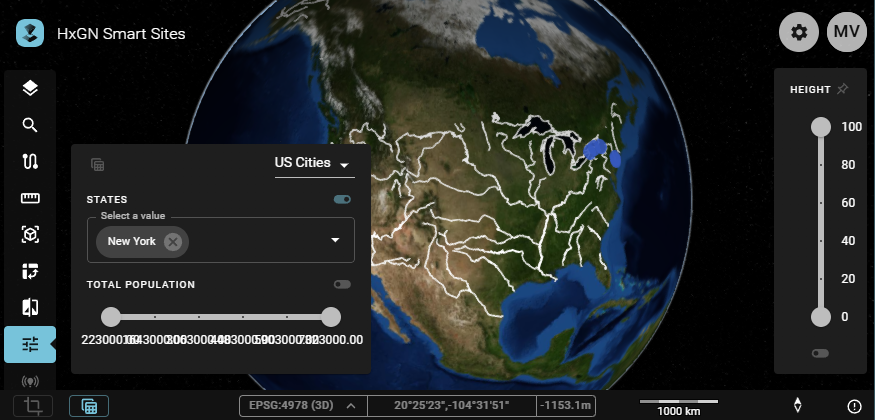
The Widget for specific Filters includes a button to open the Table view for the focused Publication.
Hiding filtered 3D data
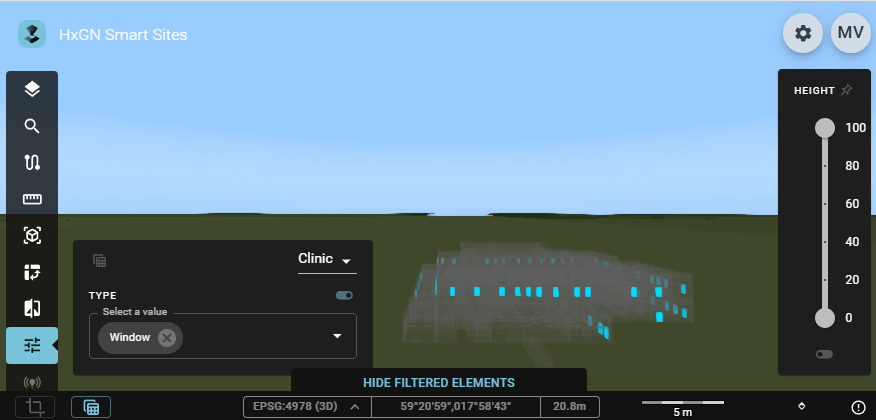
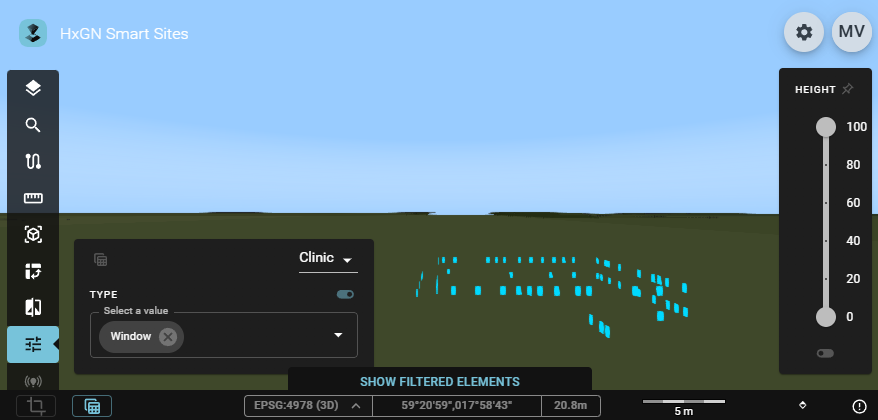
For 3D datasets, data that is filtered out will still be visible with a grayed out appearance. This is done to provide visual context for the remaining information. However, the grayed out data may interfere with selection of the data that matched the filter. To make such selection easier, it is possible to remove the filtered out data altogether using hide filtered elements.