Bottom bar
The bottom bar shows standard map information and tools.

Area of interest
 toggles the area of interest navigation constraint.
This button is only active when the area of interest is configured for your site.
Activating the area of interest sets navigation constraint on the map. It becomes impossible to navigate away from the configured area. As a side effect, rotation is disabled.
Table view
 toggles the Table
View.
toggles the Table
View.
The Table View lists the features of the focused Publication.
For WFS data, the Table View lists the features that are loaded on the map.
For OGC 3D Tiles, the Table View lists the features that are loaded when using a dimension filter.
Coordinate reference
 displays the
active map reference and allows you to change it. The listed references are configured by the administrator in
the HxGN Smart Sites Admin Client. Saving the workspace will save the selected reference.
displays the
active map reference and allows you to change it. The listed references are configured by the administrator in
the HxGN Smart Sites Admin Client. Saving the workspace will save the selected reference.
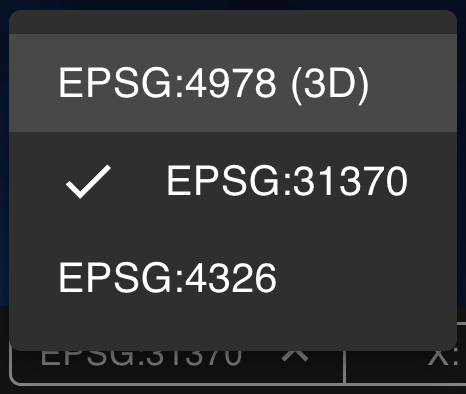
When saving the map reference, a previously saved camera position will be cleared.
Mouse Readout

The Readout shows information about the position at the mouse location.
- As with the coordinate reference, you can select a fitting projection.
- In 3D mode, lon lat coordinates are shown.
- Saving the workspace will save the selected reference.
- The coordinates of the mouse position in the selected reference.
- The height of the terrain above the ellipsoid at this position. (If available)
Only the coordinates in the map projection are displayed on smaller screens.
Map scale

The Map Bar Scale visually represent the relationship between a distance on a map and a real distance on the Earth. The length of a bar unit represents the Earth distance displayed above the bar.
Distortion
Earth's surface cannot be represented on a plane without distortion. For example: all meridians meet at the poles, but on many maps the poles are not represented by a point.
Our scale icon shows the scale at the center of the view.
Compass

The Compass points toward true north as you rotate the map.
As with the coordinate reference, you can select a suitable reference. This reference will be used when using the "rotate to top" functionality. Saving the workspace will save the selected reference.
If your map reference is in 2D, the compass can be used to disable the rotation on the map, if the area of interest is not active. Left-click the compass to use these features.
In 3D maps, you cannot disable map rotation.
Logs

The logs list events and activities in the app, providing information on user interaction and any errors that might occur.