Settings
At the top right of the screen, you find the Settings menu.
There are 2 types of Settings:
- Application Settings
- User Settings
Here, you may use the gear icon to configure global Settings. Clicking the user initials allows you to log out, or consult the documentation of HxGN Smart Sites.
Application Settings
The Application Settings button
 opens the application Settings panel.
The panel contains two sections:
- Memory consumption
- 3D Mesh Quality Falloff
- Map Effects
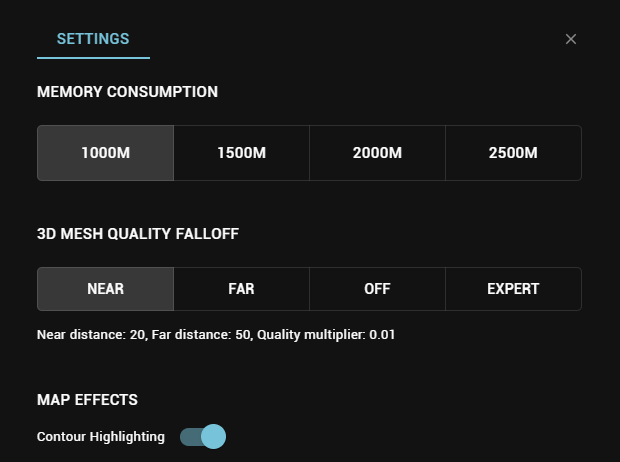
The Settings are persisted in the browser and applied through multiple sessions.
Memory Consumption
Sets the maximum memory consumption allowed by the application. This does not necessarily mean that the application will consume all the allowed memory.
this setting might cause the application to crash if set higher that the available hardware resources. You can run a diagnostic of your hardware on the LuciadRIA system diagnostics page to find out what the available resources are.
3D Mesh Quality Falloff
The quality factor controls how much data is loaded into the view. Lowering it reduces resource usage, which should positively affect performance. However, making the quality factor too low reduces visual quality.
The 3D Mesh Quality Falloff makes the quality factor dependent on how far the data is from the camera. Data that is close to the camera is loaded in full detail, using the original quality factor. Data that is far from the camera is loaded in lower detail, lowering the quality factor by a multiplier. The quality factor multiplier for data between the close and far distances is gradually degraded.
This panel allows you to control the close, far and multiplier values via 3 presets.
| Preset | Far distance quality | Resource usage |
|---|---|---|
NEAR | This preset sacrifices far distance quality the most. | lowest |
FAR | This preset moderately sacrifices far distance quality. | average |
OFF | The data is loaded with its original quality factor. | highest |
Additionally, EXPERT mode gives you full control over the near and far distances, as well as the falloff multiplier.
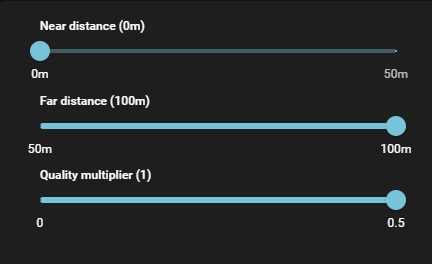
3D Mesh Quality Falloff does not impact Publications with performance management enabled.
Map Effects
Contour Highlighting
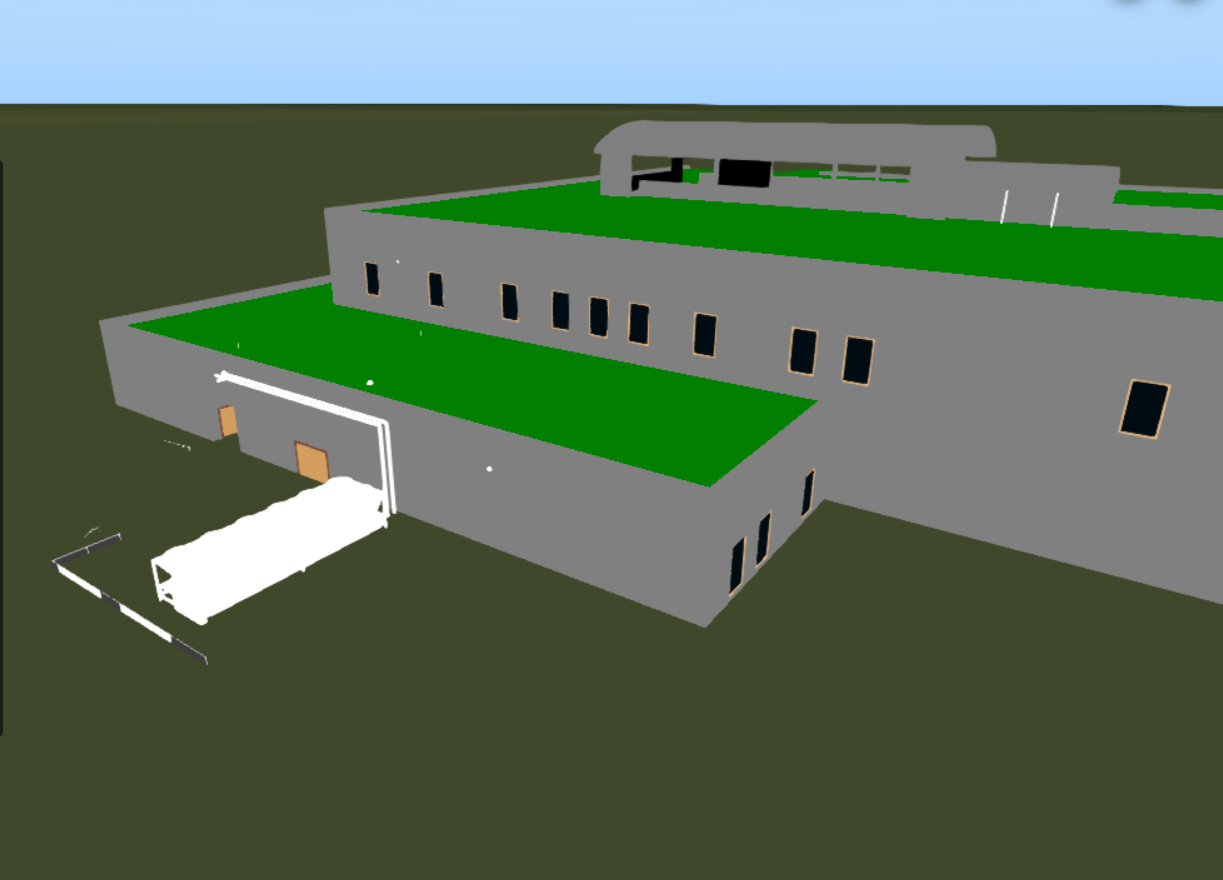
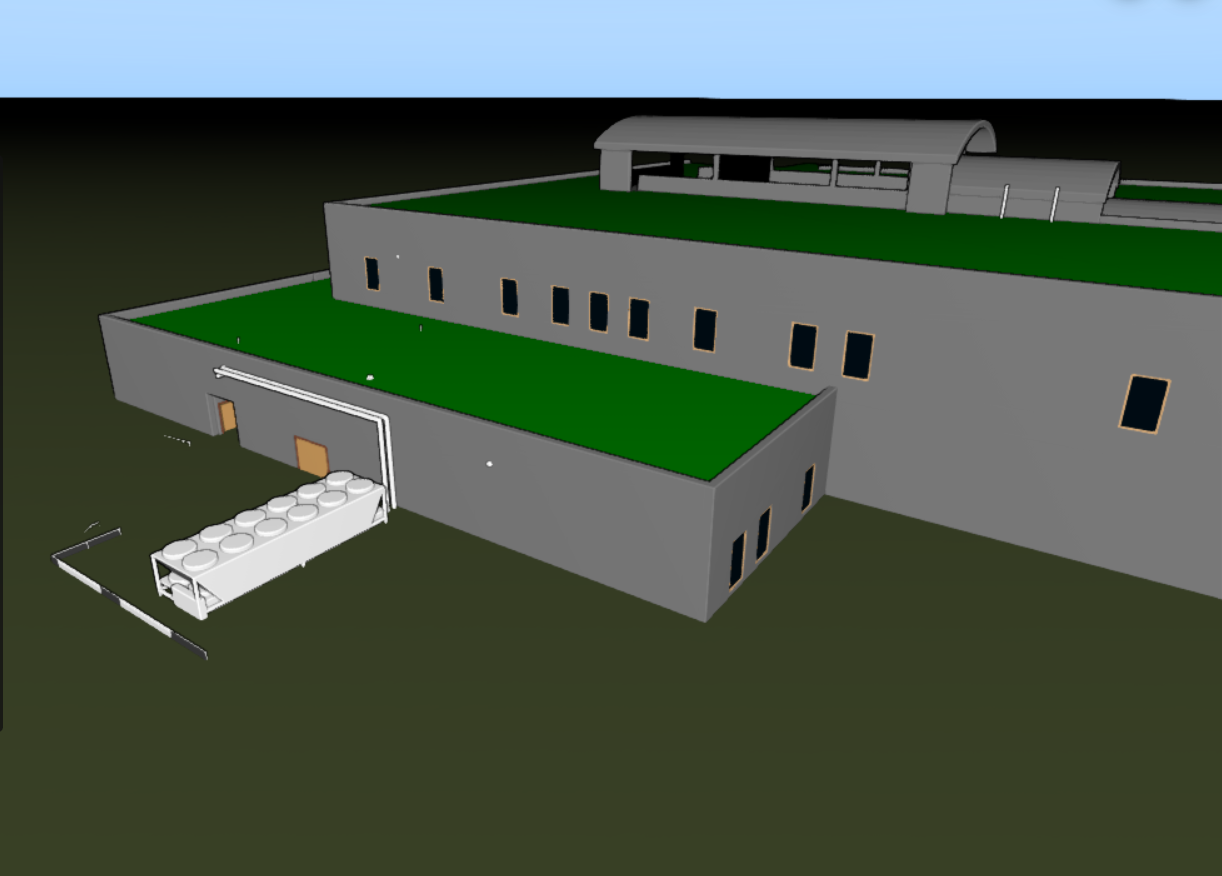
This global map setting accentuates the shapes of objects by shading their outlines. It can give 3D datasets more depth and make it easier to understand how geometries relate to each other.
User Settings
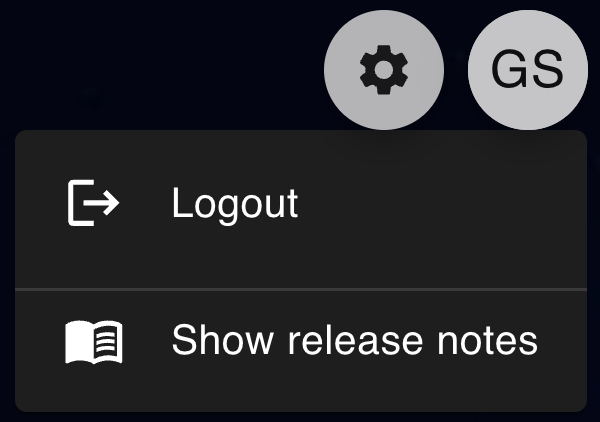
The User Settings button with your initials, opens the application Settings panel.
It contains the following sections:
- Log out of the HxGN Smart Sites Client application.
- Navigate to the release notes.